San Andreas / Инструменты / Инструменты для создания автомобилей, карт, модов и т. д.
TXD Studio
- 96xyz96 | загрузил 96xyz96
- github.com/Mid2q/txd_studio
- 04/13/2026
- 2567 Скачивания
Оценки:
Сначала войди в аккаунт.
Избранное:
Скачать
40.09Mb
40.09Mb
Videos
Видео пока не добавлены.Войди в аккаунт, чтобы добавить видео к этому моду.
Описание
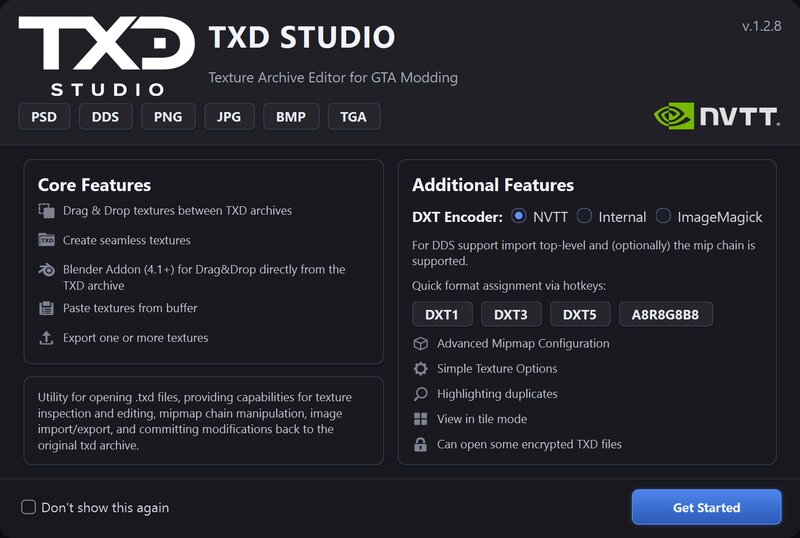
TXD Studio — an editor of RenderWare TXD archives for games of the 3D GTA era
The project is primarily designed to work with archives from: GTA San Andreas, Vice City, and GTA III
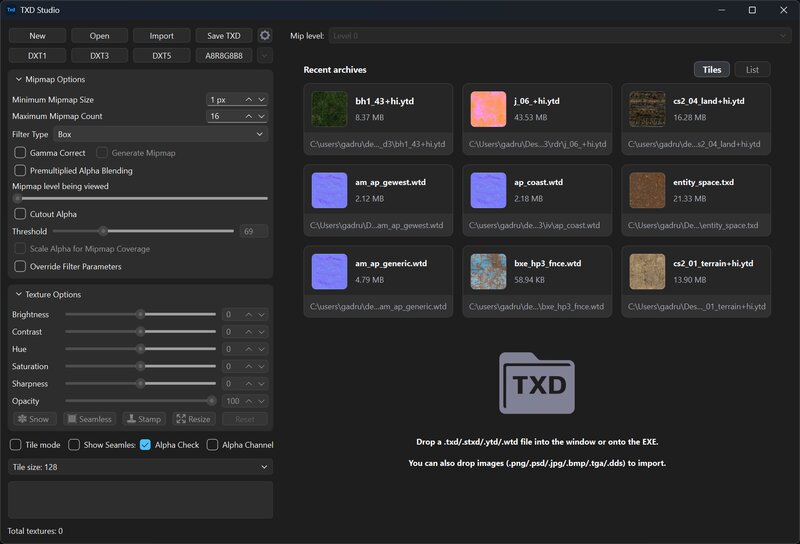
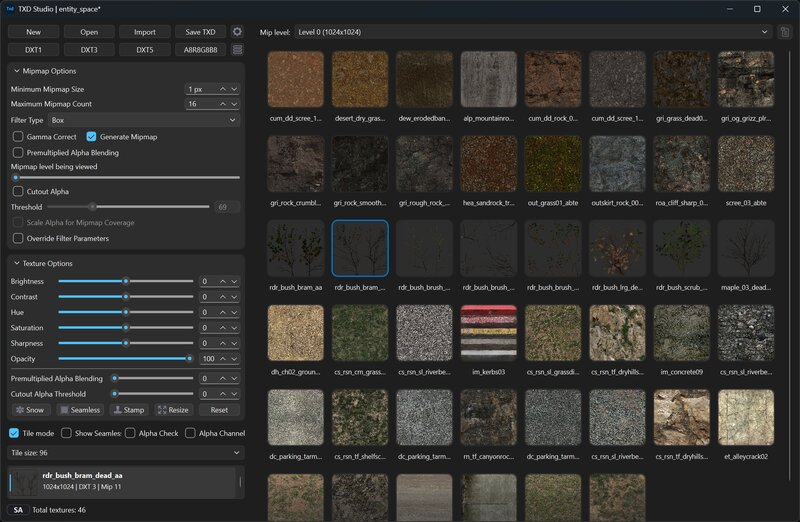
The editor is built around a practical modding workflow where all core operations are in one place: Archive browsing, working with individual textures, and quick image edits Tools such as Seamless, Stamp, Snow, and Resize, as well as mipmap pipeline settings and save parameters.
Additionally, TXD Studio can open some newer RAGE archives, such as: GTA IV .wtd and GTA V / RDR2 .ytd, but only as source archives for the current session. They can be used for previewing, extracting, and transferring textures into a regular TXD, however, the main purpose of the program remains the same: to be a convenient RenderWare TXD archive editor for classic GTA games. Support for building .wtd and .ytd archives will be added in the future.
What TXD Studio can do
Open and edit .txd and .stxd
Import textures from external images
Export textures to standard image formats
Replace one or multiple textures in a single pass
Preview mip levels and tiled/seamless output
Quickly edit image parameters directly in the editor
Built-in tools for common tasks
Drag and drop, clipboard, search, multi-select, recent files
Supported workflows:
open an existing TXD and edit its contents
build a new archive from imported images
open a GTA IV .wtd as a texture source
open a GTA V / RDR2 .ytd as a texture source
transfer the contents of an imported archive into the working session and save the result as .txd or .stxd
TXD version conversion
Supported formats:
.txd / .stxd / .wtd / .ytd /
.psd / .dds / .png / .jpg / .jpeg / .bmp / .tga
Main editor features
Browsing and navigation:
texture list with names, sizes, formats, and basic information
switching between mip levels to check how the texture will look in-game at different distances
tiled preview and seamless preview for textures that are supposed to tile without visible seams
search by name for quickly finding textures in large archives
working with multiple selected textures at once when you need to batch import, replace, export, or rename a set of resources
recent files and quick return to recently opened archives if you are working across multiple projects at once
Import and replacement:
import through the file dialog for the standard workflow
drag and drop into the application window when you need to quickly throw one or several textures into an archive
paste a texture from the clipboard if the image is already open in Photoshop, a browser, or another editor
replace the current texture without manually deleting the old entry and rebuilding the archive
batch replace a set of textures in one pass if the names already match or the composition of the updated pack is known
open .wtd and .ytd as import archives to browse archive contents and transfer the required resources into the TXD workflow
Export:
save the selected texture as a standard image file
quickly output the result after processing without intermediate conversions
a convenient way to unpack an archive, export the required textures, and prepare them for re-import
ability to copy a texture to the clipboard directly from a TXD archive
Processing tools
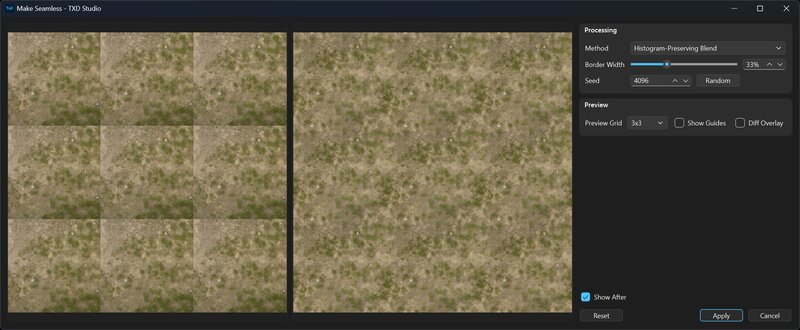
Seamless:
a tool for turning a regular texture into a seamless one so it can tile across large surfaces without visible seams
especially useful for asphalt, concrete, tiles, dirt, fabric, plaster, metal, and other repeating textures
supports several processing approaches, including wrap blend, patch/heal, and Histogram-Preserving Blending modes
lets you evaluate the result before applying it and choose the mode that best fits the source texture structure
solves the common problem where a texture looks fine on its own, but seams become visible along the edges when tiled
Stamp:
local cloning and retouching directly in the editor, without mandatory export to external paint software
suitable for removing seams, stains, compression artifacts, unwanted elements, repetitions, and poor-looking texture fragments
works with clone stamp logic: you can pick a source point and transfer image fragments onto the required area
brush size, softness, and opacity allow both rough edits and careful local refinement
wrap/clamp modes define behavior at the image boundaries
seamless mode makes it possible to stamp across texture edges, which is critical for tileable textures
Resize:
resizing the selected texture directly inside the working session
useful when you need to quickly downgrade or upgrade resolution due to memory limits, old-platform constraints, or the requirements of a specific mod
several resize algorithms let you choose between a softer or sharper result:
Bicubic
Bilinear
Nearest Neighbor
Bicubic Smooth
Bicubic Sharp
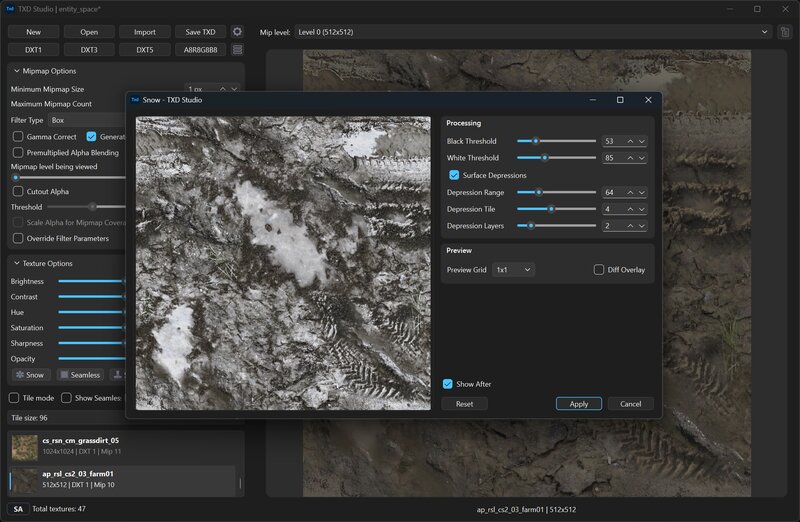
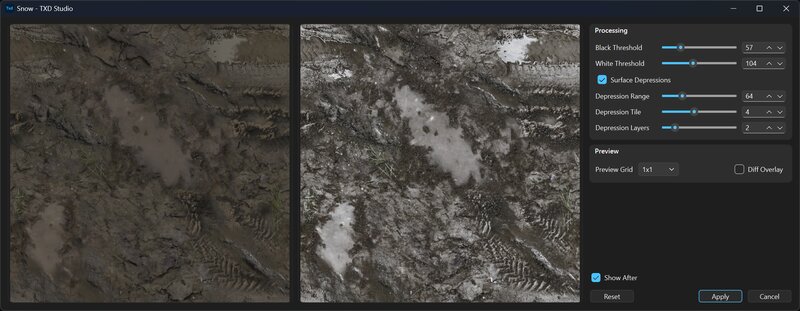
Snow:
a tool for generating snow cover on top of the source texture
suitable for winter mods, seasonal environment variations, and quick snow passes without repainting every texture manually
lets you control where snow settles more heavily and where the original material should remain visible
supports settings that help make the result look like a more believable overlay rather than a flat white fill:
Black/White Threshold
Surface depressions
Range, Tile, Layers
Texture Options:
Brightness
Contrast
Hue
Saturation
Sharpness
Opacity
Premultiplied Alpha
Cutout Alpha Threshold
This block is intended for quickly adjusting a texture directly in the main window without switching to an external image editor.
It is useful in cases where you need to:
slightly brighten or darken a texture
reduce or increase contrast
adjust hue and saturation
locally prepare alpha for foliage, fences, decals, glass, and other alpha textures
quickly bring an imported texture into working condition without an unnecessary roundtrip through third-party software
Mipmap Options:
Generate Mipmap
Filter Type
Minimum Mipmap Size
Maximum Mipmap Count
Gamma Correct
Scale Alpha for Coverage
Override Filter Parameters
This block controls how the texture will behave in-game at long distances and at viewing angles.
With it, you can:
rebuild mipmaps after import or editing
choose the generation filter for a specific texture type
control the minimum size and maximum number of mip levels
carefully work with alpha coverage so that leaves, meshes, hair, bushes, and similar textures do not disappear too early
achieve a more predictable result after saving and compressing into the archive
The project is primarily designed to work with archives from: GTA San Andreas, Vice City, and GTA III
The editor is built around a practical modding workflow where all core operations are in one place: Archive browsing, working with individual textures, and quick image edits Tools such as Seamless, Stamp, Snow, and Resize, as well as mipmap pipeline settings and save parameters.
Additionally, TXD Studio can open some newer RAGE archives, such as: GTA IV .wtd and GTA V / RDR2 .ytd, but only as source archives for the current session. They can be used for previewing, extracting, and transferring textures into a regular TXD, however, the main purpose of the program remains the same: to be a convenient RenderWare TXD archive editor for classic GTA games. Support for building .wtd and .ytd archives will be added in the future.
What TXD Studio can do
Open and edit .txd and .stxd
Import textures from external images
Export textures to standard image formats
Replace one or multiple textures in a single pass
Preview mip levels and tiled/seamless output
Quickly edit image parameters directly in the editor
Built-in tools for common tasks
Drag and drop, clipboard, search, multi-select, recent files
Supported workflows:
open an existing TXD and edit its contents
build a new archive from imported images
open a GTA IV .wtd as a texture source
open a GTA V / RDR2 .ytd as a texture source
transfer the contents of an imported archive into the working session and save the result as .txd or .stxd
TXD version conversion
Supported formats:
.txd / .stxd / .wtd / .ytd /
.psd / .dds / .png / .jpg / .jpeg / .bmp / .tga
Main editor features
Browsing and navigation:
texture list with names, sizes, formats, and basic information
switching between mip levels to check how the texture will look in-game at different distances
tiled preview and seamless preview for textures that are supposed to tile without visible seams
search by name for quickly finding textures in large archives
working with multiple selected textures at once when you need to batch import, replace, export, or rename a set of resources
recent files and quick return to recently opened archives if you are working across multiple projects at once
Import and replacement:
import through the file dialog for the standard workflow
drag and drop into the application window when you need to quickly throw one or several textures into an archive
paste a texture from the clipboard if the image is already open in Photoshop, a browser, or another editor
replace the current texture without manually deleting the old entry and rebuilding the archive
batch replace a set of textures in one pass if the names already match or the composition of the updated pack is known
open .wtd and .ytd as import archives to browse archive contents and transfer the required resources into the TXD workflow
Export:
save the selected texture as a standard image file
quickly output the result after processing without intermediate conversions
a convenient way to unpack an archive, export the required textures, and prepare them for re-import
ability to copy a texture to the clipboard directly from a TXD archive
Processing tools
Seamless:
a tool for turning a regular texture into a seamless one so it can tile across large surfaces without visible seams
especially useful for asphalt, concrete, tiles, dirt, fabric, plaster, metal, and other repeating textures
supports several processing approaches, including wrap blend, patch/heal, and Histogram-Preserving Blending modes
lets you evaluate the result before applying it and choose the mode that best fits the source texture structure
solves the common problem where a texture looks fine on its own, but seams become visible along the edges when tiled
Stamp:
local cloning and retouching directly in the editor, without mandatory export to external paint software
suitable for removing seams, stains, compression artifacts, unwanted elements, repetitions, and poor-looking texture fragments
works with clone stamp logic: you can pick a source point and transfer image fragments onto the required area
brush size, softness, and opacity allow both rough edits and careful local refinement
wrap/clamp modes define behavior at the image boundaries
seamless mode makes it possible to stamp across texture edges, which is critical for tileable textures
Resize:
resizing the selected texture directly inside the working session
useful when you need to quickly downgrade or upgrade resolution due to memory limits, old-platform constraints, or the requirements of a specific mod
several resize algorithms let you choose between a softer or sharper result:
Bicubic
Bilinear
Nearest Neighbor
Bicubic Smooth
Bicubic Sharp
Snow:
a tool for generating snow cover on top of the source texture
suitable for winter mods, seasonal environment variations, and quick snow passes without repainting every texture manually
lets you control where snow settles more heavily and where the original material should remain visible
supports settings that help make the result look like a more believable overlay rather than a flat white fill:
Black/White Threshold
Surface depressions
Range, Tile, Layers
Texture Options:
Brightness
Contrast
Hue
Saturation
Sharpness
Opacity
Premultiplied Alpha
Cutout Alpha Threshold
This block is intended for quickly adjusting a texture directly in the main window without switching to an external image editor.
It is useful in cases where you need to:
slightly brighten or darken a texture
reduce or increase contrast
adjust hue and saturation
locally prepare alpha for foliage, fences, decals, glass, and other alpha textures
quickly bring an imported texture into working condition without an unnecessary roundtrip through third-party software
Mipmap Options:
Generate Mipmap
Filter Type
Minimum Mipmap Size
Maximum Mipmap Count
Gamma Correct
Scale Alpha for Coverage
Override Filter Parameters
This block controls how the texture will behave in-game at long distances and at viewing angles.
With it, you can:
rebuild mipmaps after import or editing
choose the generation filter for a specific texture type
control the minimum size and maximum number of mip levels
carefully work with alpha coverage so that leaves, meshes, hair, bushes, and similar textures do not disappear too early
achieve a more predictable result after saving and compressing into the archive
Комментарии
Опубликовано комментариев: 3.


04/14/2026 12:55
@Ahmed_x I might write a tutorial someday, but it’s pretty straightforward.
All you need to do is open or create an archive, then drag your texture into it.
TXD Studio will suggest the best format automatically, depending on whether there’s an alpha channel or based on your preferences.
After that just save the archive
Цитировать | Ответить | (0)
@Ahmed_x I might write a tutorial someday, but it’s pretty straightforward.
All you need to do is open or create an archive, then drag your texture into it.
TXD Studio will suggest the best format automatically, depending on whether there’s an alpha channel or based on your preferences.
After that just save the archive
Цитировать | Ответить | (0)